
Choose which orders to sync
Summary
When syncing orders to ReBound, our Shopify integration can be set to include or ignore specific orders.
Order tags can be used to exclude orders from syncing. Orders created through Shopify POS (i.e., physical purchases in your store) can also be excluded or included.
You can enable this feature and configure the corresponding product tags on the "Integration Settings" page in the ReBound Returns app.
When to use this
- If you want physical purchases from your store to be returnable online in the ReBound portal (buy online return in store). These orders must have been created via Shopify POS.
- If you only want online purchases to be returnable online in the ReBound portal.
- If you want specific orders to be excluded from the sync (e.g., because they are not in scope for the ReBound integration or because you do not want customers to be able to find or return them in the returns portal).
How it works
There are two separate features: Sync POS orders and Exclude orders by tag.
Sync POS orders
- Once you enable the feature, our app remembers this setting.
- Whenever it syncs an order, it retrieves the order
sourceNamefrom Shopify. - If the value in
sourceNameispos, the order is considered a Shopify POS purchase. If the feature is enabled, that order will be synced. If it's disabled, the order will not be synced. - Only synced orders will be visible to customers in the ReBound returns portal or for your CS team in our Customer Success portal.
Exclude orders by tag
- Once you enable the feature and configure exclusion tags, our app remembers this setting.
- Whenever it syncs an order, it retrieves the order tags from Shopify.
- If any of the order tags match those on the list of exclusion tags you configure, that order will not be synced.
- Only synced orders will be visible to customers in the ReBound returns portal or for your CS team in our Customer Success portal.
Setting it up
-
Ensure the "ReBound Returns" app is installed and active in your Shopify store.
-
Open the app from the "Apps" section on the left sidebar (if pinned), or find it using the search bar at the top of the page.
-
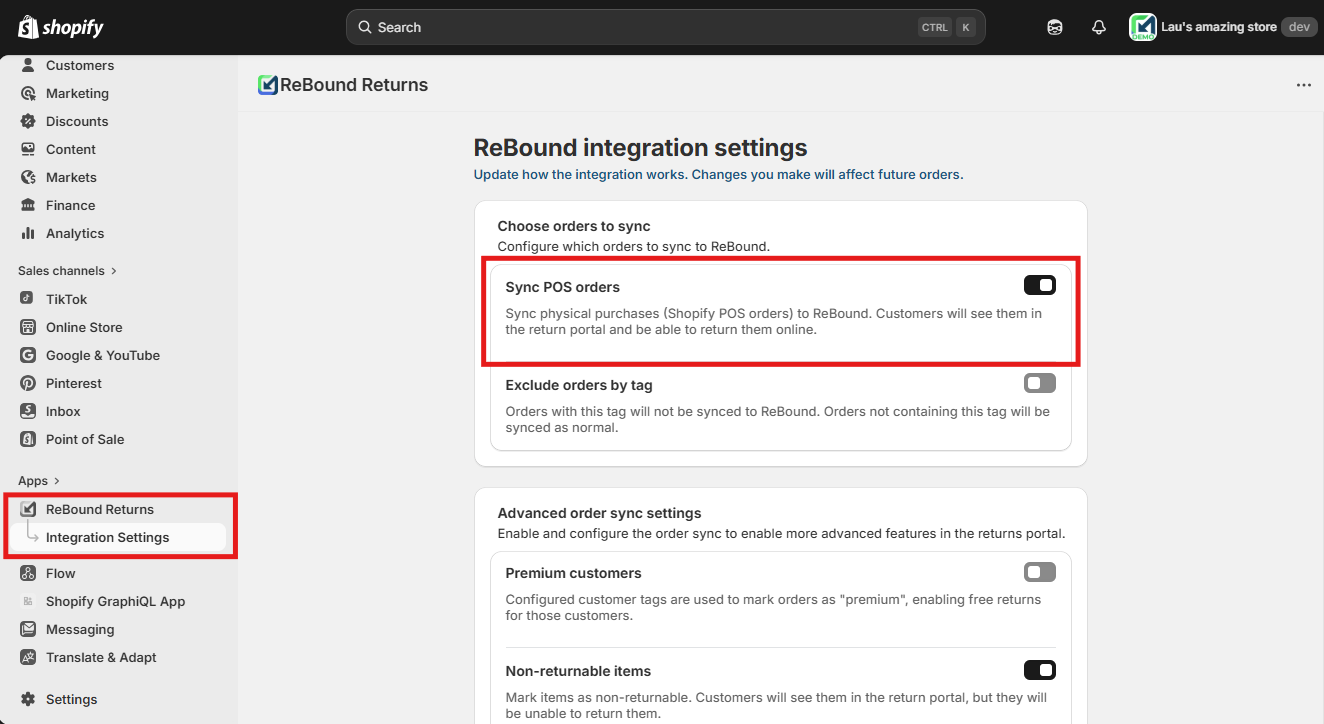
Open the "Integration Settings" page and find the "Choose orders to sync" section.
-
If desired, enable the "Sync POS orders" feature by clicking the toggle on its right. (This will sync physical purchases via Shopify POS).
-
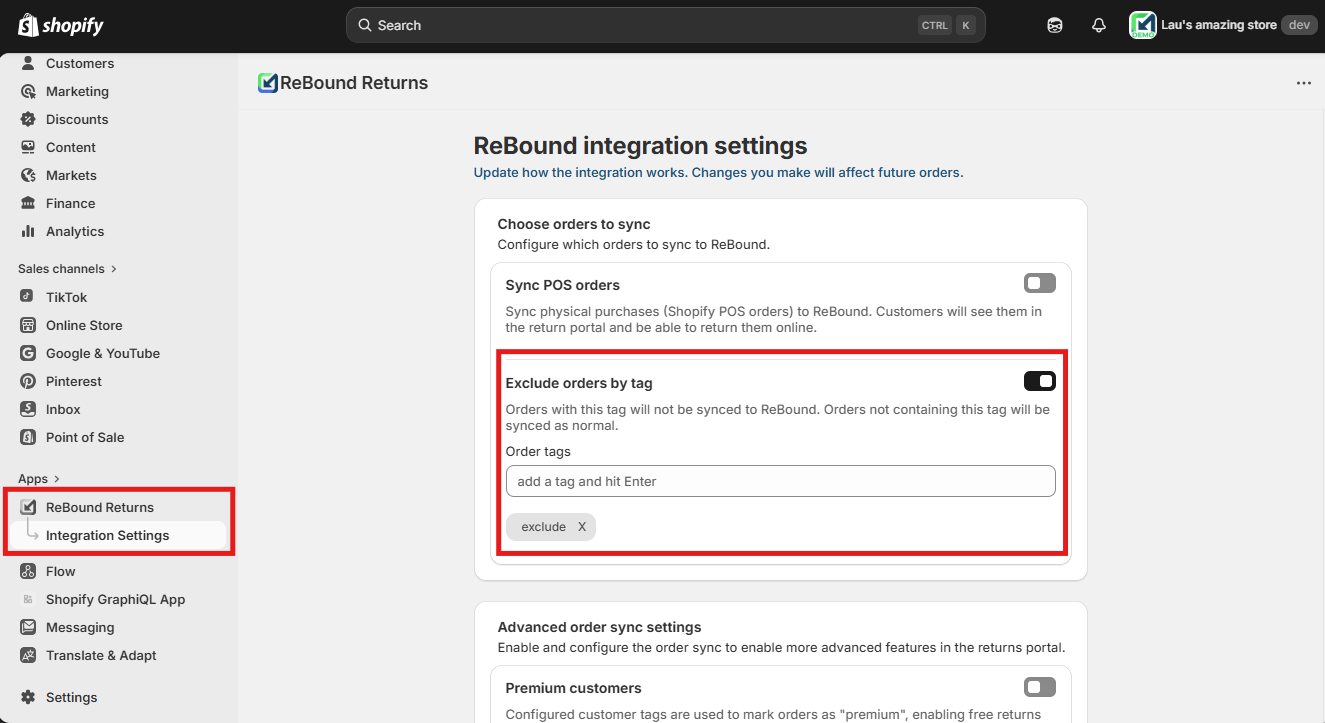
If desired, enable the "Exclude orders by tag" feature by clicking the toggle on its right. Add all the exclusion order tags and press enter to insert each. (This will exclude the orders with these tags from syncing to ReBound).
-
Make sure the tags are identical to those in your orders in Shopify. They must have the exact same spelling, including any special characters (e.g., "exclude" is not the same as "EXCLUDE").
-
If you want to remove any exclusion tags, click the "x" button to its right.
-
If you want to disable any of the features, click on the toggle to their right of "Non-returnable items". This will only affect new orders.
Notes
- The Rebound app syncs orders as they get fulfilled. For the exclude order sync by tags functionality to work, order tags must be applied before fulfillments in the order are completed. That includes partial fulfillments.
Updated 8 months ago