
Install the integration
Learn how to set up our standard integration with Shopify.
Summary
The ReBound-Shopify integration can be installed as an app in your Shopify store. This article guides you in this process.
Before you start
Before setting up in the integration, make sure that:
- You already have a commercial contract with ReBound. If you don’t have a contract already, you can always get in touch with us🔗.
- Your ReBound implementation manager has made your internal setup in the ReBound platform. Without it, the app will not recognize your store.
- You have access to all the Shopify stores where the app has to be installed. If you use multiple Shopify stores in parallel (e.g., for different brands or geographies), it may be required that all of them are integrated with ReBound. You can do that by installing our app in all of your stores.
Step by step installation guide
If you prefer a visual guide to, check out our interactive demo🔗.
If you prefer a written guide, you can follow the steps below:
- Open the app listing from the Shopify App Store🔗 and click “Install”.
- You may see a pop-up prompting you to choose the Shopify store on which you wish to install the app. You will then be forwarded back to your Shopify admin to a permissions approval page.
- Review the permissions and approve them by clicking “Install”.
- On the next page, select if you wish to install the app in Test or Live mode. More details. If you're unsure, please ask your ReBound implementation manager.
- Press on "Complete app setup".
- You will be forwarded to the app’s homepage, which contains some useful links. The integration is now live.
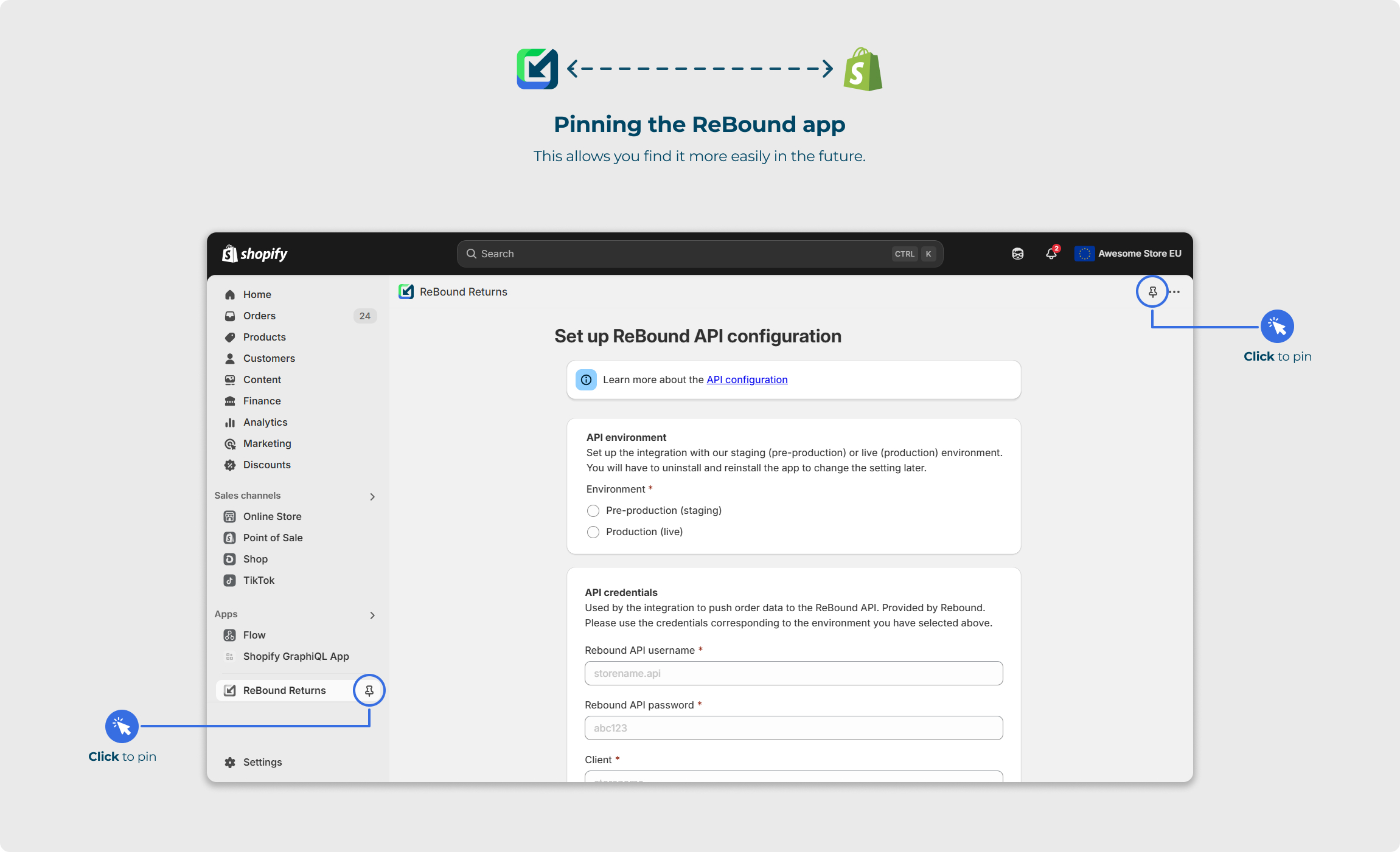
Pinning the appYou can pin the ReBound Returns app to your Shopify admin sidebar to find it easily in the future. You can do this by pressing any of these two “Pin” icons:
Verifying that it works
Do you want to check that the setup worked and the data sync works as expected? You can do that by creating a test order and then returning it in the ReBound consumer portal.
See how it works with the data sync interactive demo 🔗.
Troubleshooting
Orders are not synced
Do you believe orders are not being synced from your Shopify store to ReBound? A few possible reasons include:
- Your app is not fully set up. Please make sure you followed all the steps above.
- Required order data was missing. Some order, customer and product data are mandatory for the order sync. Learn more. Orders with missing data will not be synced. You can add the missing the data and request an order resync from your ReBound implementation manager.
- The order was excluded. Some orders can be excluded from the data sync. You can configure this yourself in our Shopify app. Learn more.
- Your ReBound setup is wrong. Something may have been misconfigured internally. If you suspect that is the case, please reach out to your ReBound implementation manager.
No ReBound configuration
Before setting up the app, your stores have to be implemented in our internal system. Your ReBound implementation manager will do that for you.
Please make sure you shared the myshopify.com ids for all your stores with them. You can find that on the Settings page at the top left.
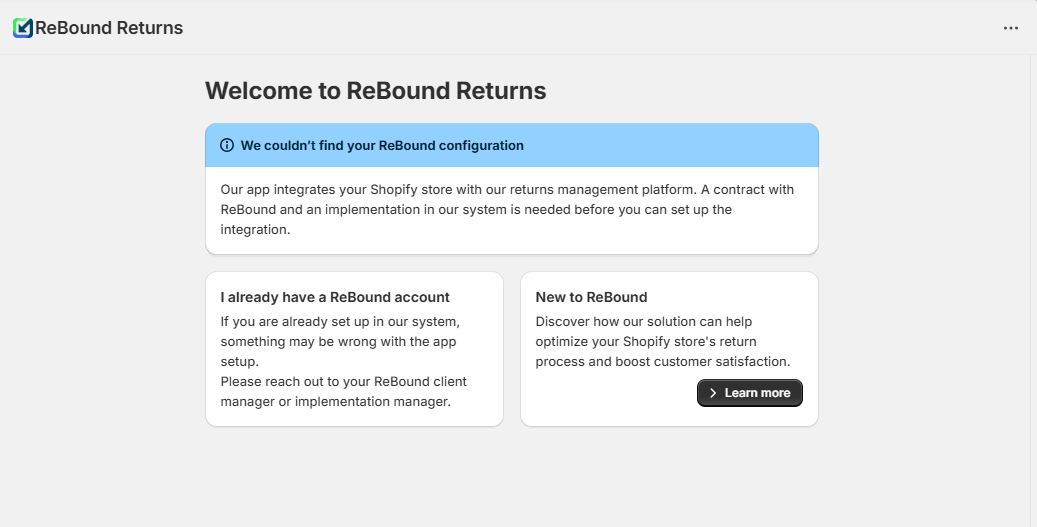
If your stores are not implemented yet, you'll see this page when installing the app:
Your integration is disabled
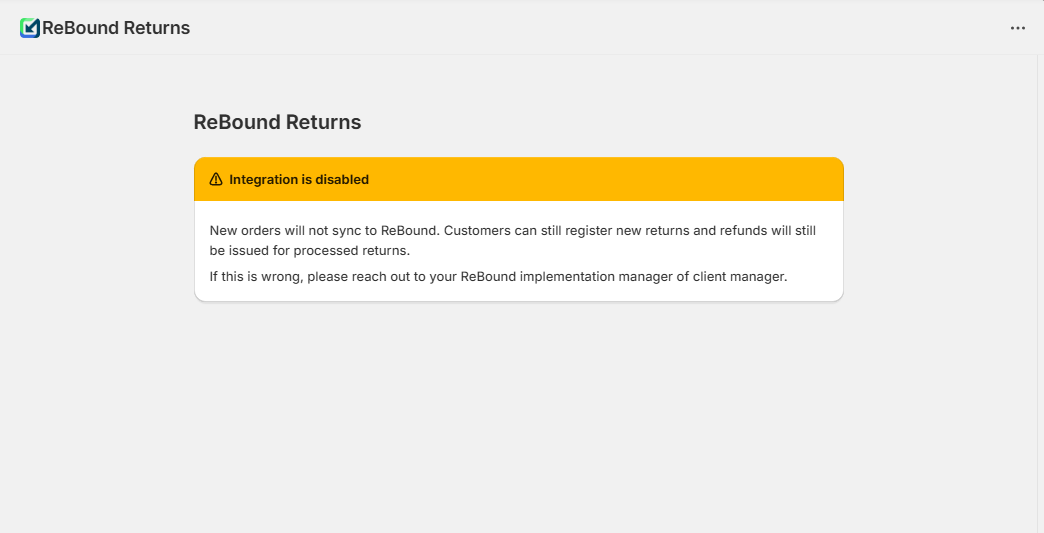
You may sometimes see an "Integration is disabled" message when opening the app. This can happen if you'd had a ReBound account in the past, or if the implementation was started but not completed.
If you see this, please reach out to your ReBound implementation manager or client manager.
Updated 7 months ago